Every picture on Sozai Garden is free to use, with no sign-up. This page shows how to save a picture and how to use it in Word, PowerPoint, Excel, Canva and on your phone (messaging apps, Instagram), with sample screens.
Copy and paste (easiest)
If you only want to put a picture into Word, PowerPoint or Excel, you don’t need to save it – just use the “Copy image” button.
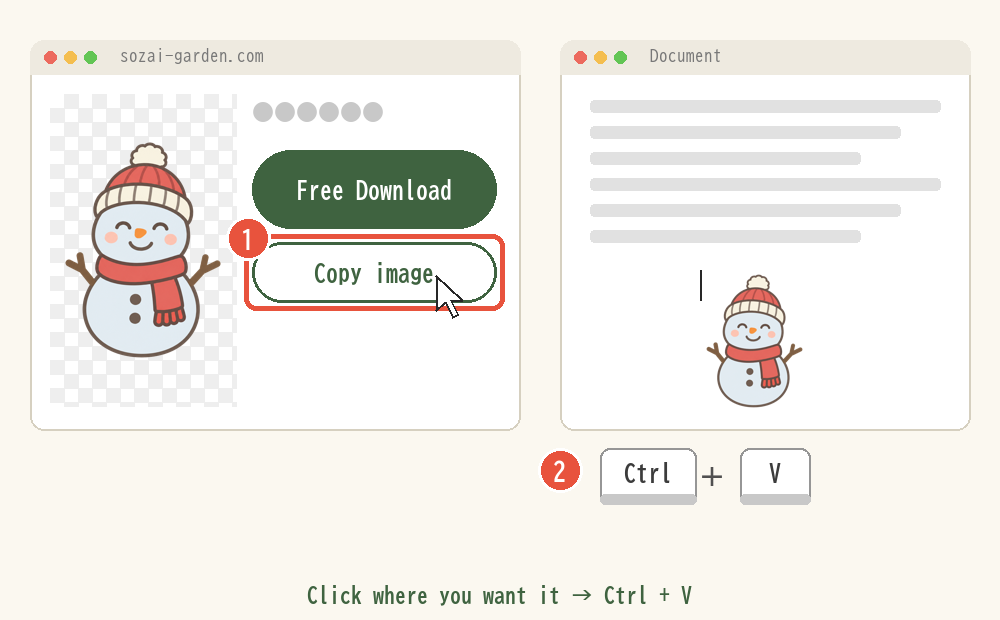
- Open the picture’s page and press “Copy image”. When you see “Copied!”, you are ready.
- In Word (or another app), click where you want the picture, then hold Ctrl and press V (on a Mac: ⌘+V).
If it says it could not copy, right-click the picture and choose “Copy image” – it pastes the same way.
Save to your computer (download)
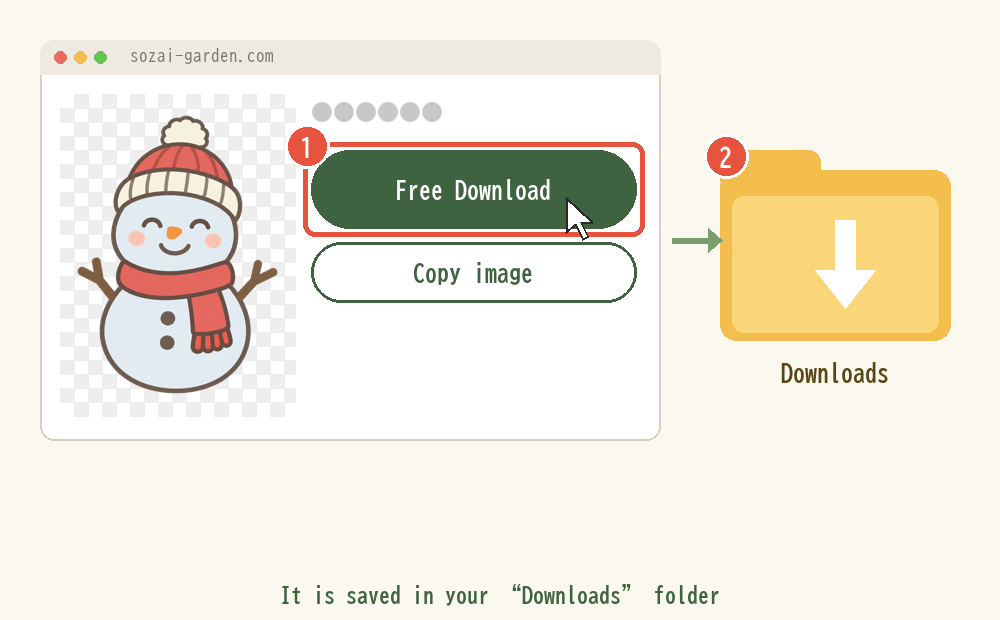
- Press the big green “Free Download” button on the picture’s page.
- The picture is saved in your “Downloads” folder.
- The big green button saves the picture with no background, so it sits nicely on photos and colored paper without a white box around it.
- If you prefer a white background, use “Download with a white background” below the button.
Put a saved picture into Word, PowerPoint or Excel
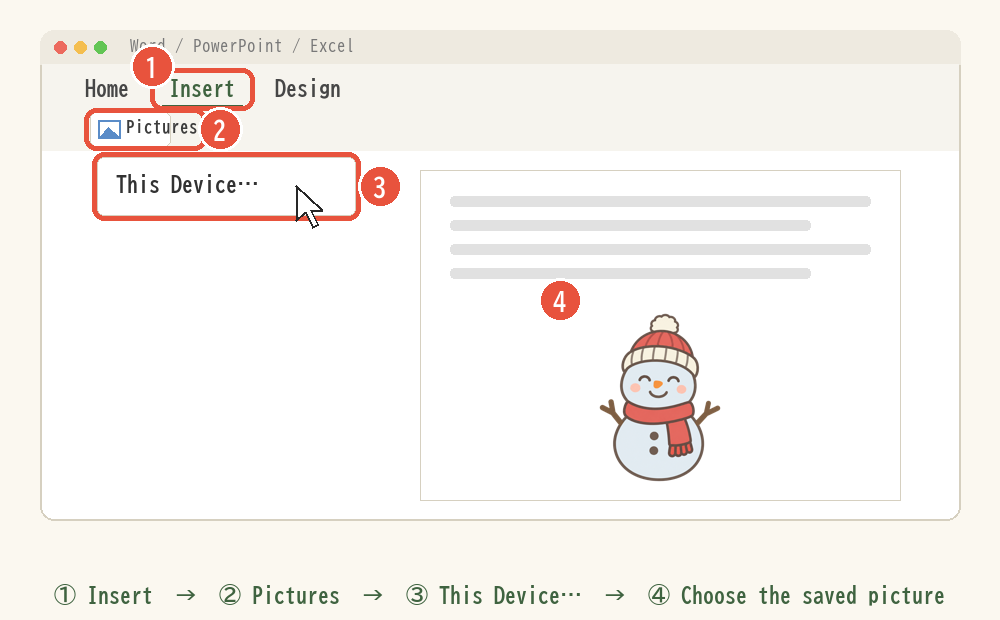
- Click Insert at the top.
- Click Pictures.
- Click This Device…
- Choose the picture in your Downloads folder and click Insert.
To resize it, click the picture and drag one of the small corner circles (corners keep the shape).
Use it in Canva
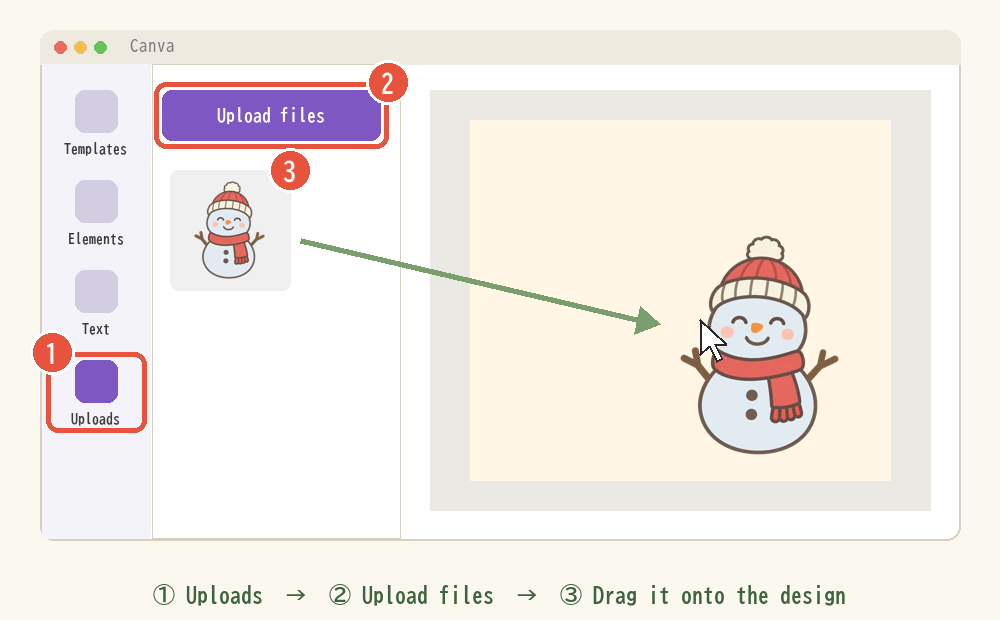
- Click Uploads on the left.
- Click Upload files and choose the saved picture.
- Drag it onto your design (or just click it).
Save it on your phone and use it in messaging apps or Instagram
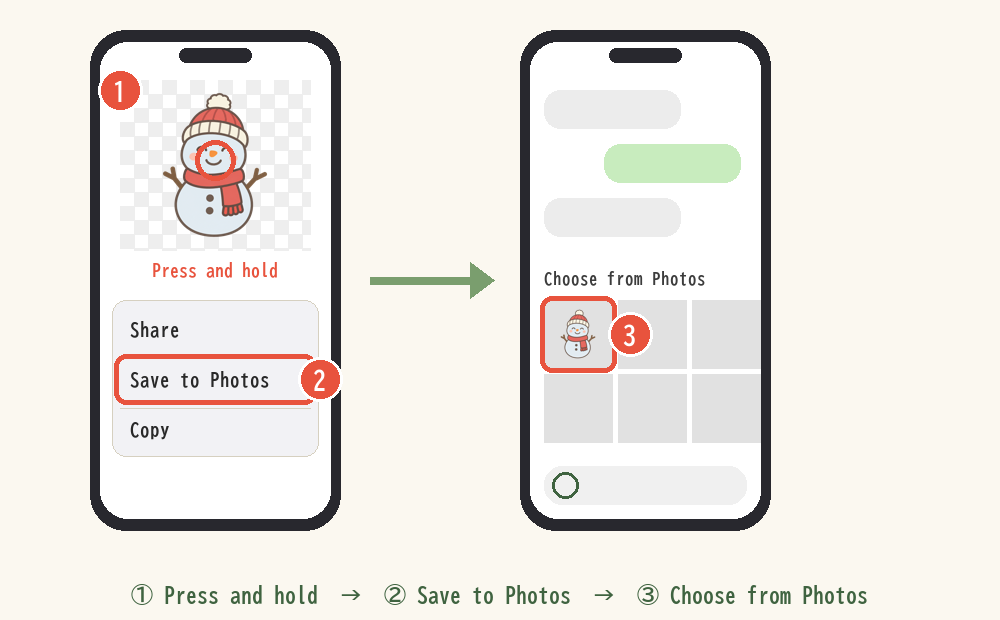
- On the picture’s page, press and hold the big picture.
- Choose “Save to Photos” (iPhone) or “Download image” (Android).
- In your chat or Instagram post, pick it from your photos, just like any other photo.
Troubleshooting
“Copy image” does not paste
Some older browsers cannot copy pictures. Right-click the picture and choose “Copy image”, or download it and use Insert.
There is a white box around the picture
You probably saved the white-background (JPG) version. Download it again with the big green button (no background).
Can I use it for work?
Yes – shops, businesses, schools, YouTube and more, all free. See the Terms of Use and FAQ.